
Prepare the screenshot
Use a clean screenshot at a suitable aspect ratio and keep important controls away from the crop. Check legibility at the final image size, especially for app store and mobile campaign placements.
Place a mobile screenshot inside a phone frame to show how an interface appears on a device. Choose a template that matches the intended phone proportions, then review screen fit and small interface details.
Category introduction
Use Mobile mockups to compare artwork on the product form before sharing a design. Select a template whose view and editable area suit your intended presentation; controls and export options vary by item.
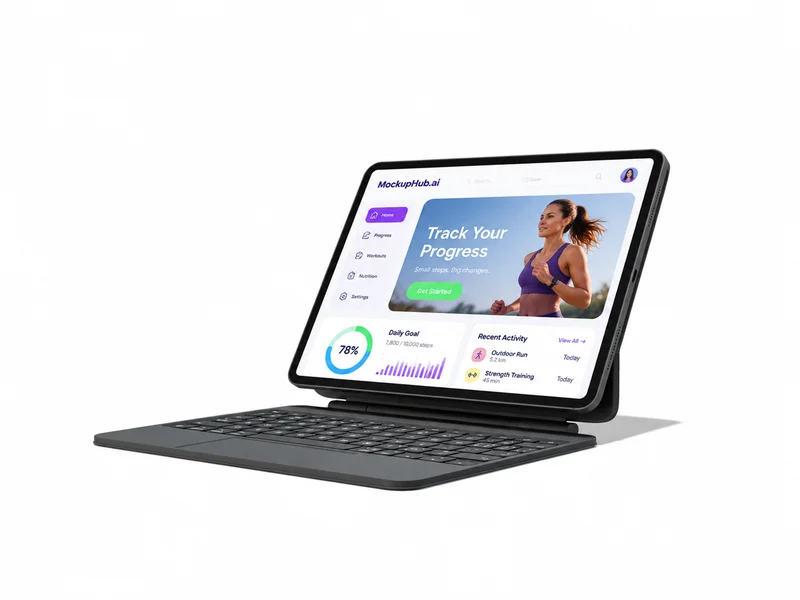
Template features
Explore the available template views and practical checks for this product category.
Use a clean screenshot at a suitable aspect ratio and keep important controls away from the crop. Check legibility at the final image size, especially for app store and mobile campaign placements.
A device frame gives a screenshot presentation context for a landing page, portfolio or case study. It does not replace testing responsive behavior, accessibility or compatibility on real devices.
Common questions
Helpful details about choosing a template, reviewing a design and using exported mockup images.
Use a clear mobile app or website screenshot that fits the template's screen area. Match the intended device proportions and inspect the final crop.
No. It is a visual presentation of supplied artwork, not device testing or a compatibility check.
Match the template to the product shape and the view you need to present. Check its card and editor for available views, editable areas and export options before starting.
Start with a clear image that fits the template's visible artwork area. Keep important details inside the crop, then review scale and legibility in the editor preview.
No. A mockup helps review appearance. Confirm dimensions, materials, print areas, compatibility and production requirements with the relevant supplier or product specifications.